AI Agent Observability: How to Debug When Your Agent Breaks in Production
Production agents fail in ways you can't predict. Here's how to build observability into your agents so you can debug issues quickly and prevent future failures.

Your agent breaks in production. A user reports an issue. You have no idea what happened.
No logs. No traces. No visibility into what the agent did, which tools it called, or why it failed.
You're debugging blind.
Here's how to build observability into AI agents so you can debug issues quickly and prevent future failures.
The Observability Problem
Traditional software is deterministic. Same input, same output. Debugging is straightforward.
AI agents are non-deterministic. Same input can produce different outputs. Debugging requires understanding:
- What the agent decided to do
- Which tools it called
- What data it processed
- Why it made specific choices
- Where in the flow it failed
Without observability, you can't answer these questions.
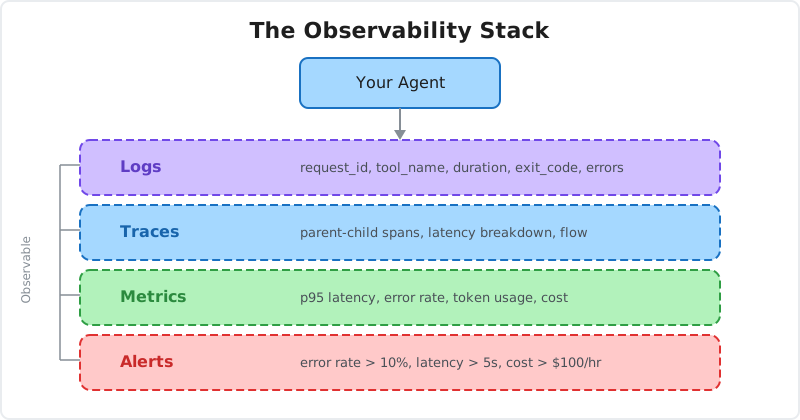
What to Log
Effective observability requires logging at multiple levels.
1. Request Level
Log every request to your agent.
logger.info("Agent request received", {
  requestId: uuid(),
  userId,
  sessionId,
  timestamp: new Date().toISOString(),
  input: {
    prompt: request.prompt.substring(0, 200), // First 200 chars
    model: request.model,
    temperature: request.temperature,
  },
});
What to capture:
- Request ID (for tracing)
- User ID
- Session ID
- Timestamp
- Input prompt (truncated for privacy)
- Model configuration
2. Tool Calls
Log every tool the agent calls.
logger.info("Tool called", {
  requestId,
  toolName: "pdf_extractor",
  toolInput: {
    filePath: "/sandbox/files/document.pdf",
  },
  timestamp: new Date().toISOString(),
});

// After execution
logger.info("Tool completed", {
  requestId,
  toolName: "pdf_extractor",
  success: true,
  duration: 1234, // milliseconds
  outputSize: 5678, // bytes
});
What to capture:
- Tool name
- Input parameters
- Execution time
- Success/failure status
- Output size (not full output, for performance)
3. Agent Decisions
Log the agent's reasoning and decisions.
logger.info("Agent decision", {
  requestId,
  decision: "call_tool",
  reasoning: "User uploaded PDF, need to extract text",
  selectedTool: "pdf_extractor",
  confidence: 0.95,
});
What to capture:
- What decision was made
- Why it was made (if available)
- Confidence level
- Alternative options considered
4. Errors
Log all errors with full context.
logger.error("Agent execution failed", {
  requestId,
  userId,
  sessionId,
  error: {
    message: error.message,
    stack: error.stack,
    code: error.code,
  },
  context: {
    model: "gpt-4o",
    toolsAvailable: ["pdf_extractor", "data_analyzer"],
    lastToolCalled: "pdf_extractor",
    promptTokens: 150,
    completionTokens: 0,
  },
});
What to capture:
- Error message and stack trace
- Error code (if available)
- Full context (model, tools, tokens)
- What was happening when the error occurred
5. Performance Metrics
Log performance data for every request.
logger.info("Agent request completed", {
  requestId,
  userId,
  duration: {
    total: 3456,      // Total request time
    llm: 2100,        // LLM generation time
    tools: 1200,      // Tool execution time
    overhead: 156,    // Framework overhead
  },
  tokens: {
    prompt: 150,
    completion: 300,
    total: 450,
  },
  cost: 0.0045, // Estimated cost in USD
  success: true,
});
What to capture:
- Total duration
- Breakdown by component (LLM, tools, overhead)
- Token usage
- Estimated cost
- Success/failure
Structured Logging
Use structured logging (JSON) instead of plain text.
Bad: Plain text
console.log(`User ${userId} called tool pdf_extractor at ${new Date()}`);Good: Structured JSON
logger.info("Tool called", {
  userId,
  toolName: "pdf_extractor",
  timestamp: new Date().toISOString(),
});
Why structured logging matters:
- Queryable: Search for all requests by a specific user
- Aggregatable: Calculate average latency across all requests
- Parseable: Automated analysis and alerting
- Consistent: Same format across all logs
Setting Up Structured Logging
import winston from "winston";

const logger = winston.createLogger({
  level: "info",
  format: winston.format.combine(
    winston.format.timestamp(),
    winston.format.json()
  ),
  transports: [
    new winston.transports.Console(),
    new winston.transports.File({ filename: "agent.log" }),
  ],
});

export default logger;
Distributed Tracing
When your agent calls multiple services, use distributed tracing to follow the request flow.
OpenTelemetry Setup
import { trace } from "@opentelemetry/api";
import { NodeTracerProvider } from "@opentelemetry/sdk-trace-node";
import { SimpleSpanProcessor } from "@opentelemetry/sdk-trace-base";
import { JaegerExporter } from "@opentelemetry/exporter-jaeger";

// Initialize tracer
const provider = new NodeTracerProvider();
const exporter = new JaegerExporter({
  endpoint: "http://localhost:14268/api/traces",
});

provider.addSpanProcessor(new SimpleSpanProcessor(exporter));
provider.register();

const tracer = trace.getTracer("agent-service");
Tracing Agent Execution
async function processAgentRequest(request) {
  const span = tracer.startSpan("process_agent_request");

  span.setAttribute("user_id", request.userId);
  span.setAttribute("model", request.model);

  try {
    // Generate response
    const generateSpan = tracer.startSpan("generate_response", {
      parent: span,
    });

    const response = await generateText({
      model: request.model,
      prompt: request.prompt,
    });

    generateSpan.setAttribute("tokens", response.usage.totalTokens);
    generateSpan.end();

    // Call tools if needed
    if (response.toolCalls) {
      for (const toolCall of response.toolCalls) {
        const toolSpan = tracer.startSpan("execute_tool", {
          parent: span,
        });

        toolSpan.setAttribute("tool_name", toolCall.name);

        const result = await executeTool(toolCall);

        toolSpan.setAttribute("success", result.success);
        toolSpan.end();
      }
    }

    span.setStatus({ code: SpanStatusCode.OK });
    return response;
  } catch (error) {
    span.setStatus({ code: SpanStatusCode.ERROR });
    span.recordException(error);
    throw error;
  } finally {
    span.end();
  }
}
What tracing gives you:
- Visual timeline of request flow
- Parent-child relationships between operations
- Latency breakdown by component
- Error propagation paths
Metrics
Track quantitative data about your agent's behavior.
Key Metrics to Track
Request Metrics:
- Total requests per minute
- Success rate
- Error rate
- Request latency (p50, p95, p99)
Model Metrics:
- Token usage per request
- Cost per request
- Model selection distribution
Tool Metrics:
- Tool call frequency
- Tool success rate
- Tool execution time
User Metrics:
- Active users
- Requests per user
- Cost per user
Implementing Metrics with Prometheus
import { Counter, Histogram, Gauge } from "prom-client";

// Request counter
const requestCounter = new Counter({
  name: "agent_requests_total",
  help: "Total agent requests",
  labelNames: ["model", "status"],
});

// Latency histogram
const latencyHistogram = new Histogram({
  name: "agent_request_duration_seconds",
  help: "Agent request latency",
  labelNames: ["model"],
  buckets: [0.1, 0.5, 1, 2, 5, 10],
});

// Token usage gauge
const tokenGauge = new Gauge({
  name: "agent_tokens_used",
  help: "Tokens used per request",
  labelNames: ["model", "type"],
});

// Cost counter
const costCounter = new Counter({
  name: "agent_cost_usd_total",
  help: "Total cost in USD",
  labelNames: ["model"],
});

// Instrument your code
async function processRequest(request) {
  const start = Date.now();

  try {
    const result = await generateText(request);

    // Record success
    requestCounter.inc({ model: request.model, status: "success" });

    // Record latency
    const duration = (Date.now() - start) / 1000;
    latencyHistogram.observe({ model: request.model }, duration);

    // Record tokens
    tokenGauge.set(
      { model: request.model, type: "prompt" },
      result.usage.promptTokens
    );
    tokenGauge.set(
      { model: request.model, type: "completion" },
      result.usage.completionTokens
    );

    // Record cost
    const cost = calculateCost(result.usage, request.model);
    costCounter.inc({ model: request.model }, cost);

    return result;
  } catch (error) {
    requestCounter.inc({ model: request.model, status: "error" });
    throw error;
  }
}
Exposing Metrics
import express from "express";
import { register } from "prom-client";

const app = express();

// Metrics endpoint
app.get("/metrics", (req, res) => {
  res.set("Content-Type", register.contentType);
  res.end(register.metrics());
});

app.listen(9090);
Dashboards
Visualize metrics in real-time dashboards.
Grafana Dashboard
Create a dashboard with:
Request Rate Panel:
rate(agent_requests_total[5m])Error Rate Panel:
rate(agent_requests_total{status="error"}[5m])
  /
rate(agent_requests_total[5m])
Latency Panel:
histogram_quantile(0.95, rate(agent_request_duration_seconds_bucket[5m]))Cost Panel:
increase(agent_cost_usd_total[1h])Token Usage Panel:
sum(agent_tokens_used) by (model, type)Alerting
Set up alerts for anomalies and failures.
Alert Rules
High Error Rate:
groups:
  - name: agent_alerts
    rules:
      - alert: HighErrorRate
        expr: |
          rate(agent_requests_total{status="error"}[5m])
          /
          rate(agent_requests_total[5m])
          > 0.1
        for: 5m
        annotations:
          summary: "Agent error rate above 10%"
          description: "{{ $value | humanizePercentage }} of requests are failing"
High Latency:
- alert: HighLatency
  expr: |
    histogram_quantile(0.95,
      rate(agent_request_duration_seconds_bucket[5m])
    ) > 5
  for: 5m
  annotations:
    summary: "Agent latency above 5 seconds"
    description: "95th percentile latency is {{ $value }}s"
High Cost:
- alert: HighCost
  expr: |
    increase(agent_cost_usd_total[1h]) > 100
  annotations:
    summary: "Agent cost above $100/hour"
    description: "Current hourly cost: ${{ $value }}"
Model Unavailable:
- alert: ModelUnavailable
  expr: |
    rate(agent_requests_total{status="error"}[5m]) > 0.5
    and
    on() rate(agent_requests_total{status="success"}[5m]) == 0
  for: 2m
  annotations:
    summary: "Model appears to be unavailable"
Debugging Workflows
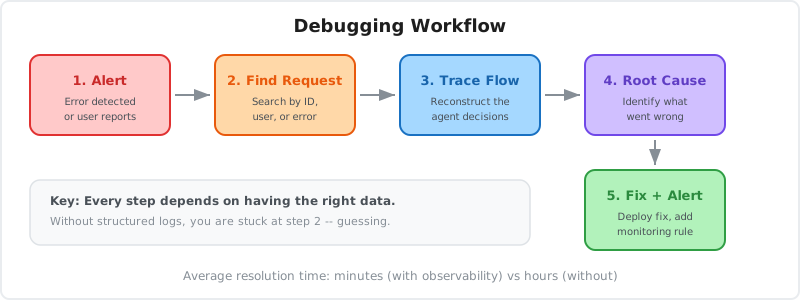
When an issue occurs, follow this workflow.
1. Identify the Request
Find the failing request in your logs:
# Search by request ID
grep "request_id: abc123" agent.log

# Search by user ID
grep "user_id: user_456" agent.log

# Search by error
grep "ERROR" agent.log | grep "2024-02-16"
2. Reconstruct the Flow
Use distributed tracing to see what happened:
- Open Jaeger UI
- Search for the request ID
- View the trace timeline
- Identify where the failure occurred
3. Examine Context
Look at the full context around the failure:
- What was the user's input?
- Which model was used?
- What tools were available?
- What was the last successful operation?
- What changed recently?
4. Reproduce Locally
Try to reproduce the issue:
// Use the same inputs from production
const result = await processAgentRequest({
  userId: "user_456",
  model: "gpt-4o",
  prompt: "The exact prompt from production",
  sessionId: "session_789",
});
5. Fix and Verify
After fixing:
- Deploy the fix
- Monitor error rates
- Verify the issue is resolved
- Add tests to prevent regression
Bluebag Observability
Bluebag provides built-in observability for agent Skills.
What Bluebag logs:
- Every Skill execution
- Execution time (duration_ms)
- Exit codes and error status
- File operations (upload/download/persist)
- Tool usage statistics
- Session and request metadata
Access logs through:
- Bluebag Dashboard (Insights page)
All execution logs are automatically captured and available in the Bluebag web dashboard. The Insights page shows:
- Execution timeline with success/failure status
- Duration metrics for each tool execution
- Session history and request metadata
- Tool usage statistics and patterns
const bluebag = new Bluebag({
  apiKey: process.env.BLUEBAG_API_KEY,
});

// Execution logs are automatically sent to Bluebag
// View them in the Insights tab on your Dashboard
Note: Bluebag does not log tool input/output as they may contain sensitive data (PII). Only execution metadata, exit codes, and artifact counts are logged.
Best Practices
1. Log Early, Log Often
Don't wait until production to add logging. Build it in from day one.
2. Use Correlation IDs
Generate a unique ID for each request and include it in all logs.
const requestId = uuid();

logger.info("Request started", { requestId });
logger.info("Tool called", { requestId, toolName });
logger.info("Request completed", { requestId });
3. Don't Log Sensitive Data
Avoid logging:
- Full user prompts (truncate to 200 chars)
- API keys or secrets
- Personal information (PII)
- Full file contents
4. Set Retention Policies
Logs accumulate quickly. Set retention policies:
- Keep detailed logs for 7 days
- Keep aggregated metrics for 90 days
- Archive critical logs for 1 year
5. Monitor Your Monitoring
Ensure your observability stack is working:
- Alert if logs stop flowing
- Monitor log ingestion rate
- Track metrics collection gaps
Conclusion
Production agents fail in unpredictable ways. Without observability, you're debugging blind.
What to implement:
- Structured logging at all levels
- Distributed tracing for request flow
- Metrics for quantitative analysis
- Dashboards for real-time visibility
- Alerts for proactive detection
What to log:
- Every request (input, model, config)
- Every tool call (name, input, output, duration)
- Every decision (reasoning, confidence)
- Every error (message, stack, context)
- Every performance metric (latency, tokens, cost)
Build observability from day one. When your agent breaks in production, you'll know exactly what happened and how to fix it.
Or use infrastructure that provides observability out of the box. Bluebag logs every Skill execution with full context, making debugging straightforward.
You can't fix what you can't see. Build observability into your agents.
Resources
- Bluebag Documentation - Built-in observability
- OpenTelemetry - Distributed tracing standard
- Prometheus - Metrics and alerting
- Grafana - Visualization and dashboards
- The Observability Engineering Book - Deep dive
Building production agents? Start with Bluebag and get observability built-in.